
Jarv ZID theme / documentation version 1.0
Introduction
- Item Name : Jarv Themes
- Item Version : v 1.0
- Author : Joseph Anthony Villoria
- Support : Whatsapp
- Mobile : 0530614262
- Email : josephanthonyvilloria@gmail.com
First of all, Thank you so much for purchasing JARV Theme and for being my loyal customer. You are awesome!
This documentation is to help you regarding each step of customization.
Get a Installation ServiceGetting Started
Login to web zid merchant portal then go to Theme Market then click Theme customization
GENERAL SETTINGS
Click Home in header then choose General Settings

Colors > Header | Change the background color and text color of the sticky header.
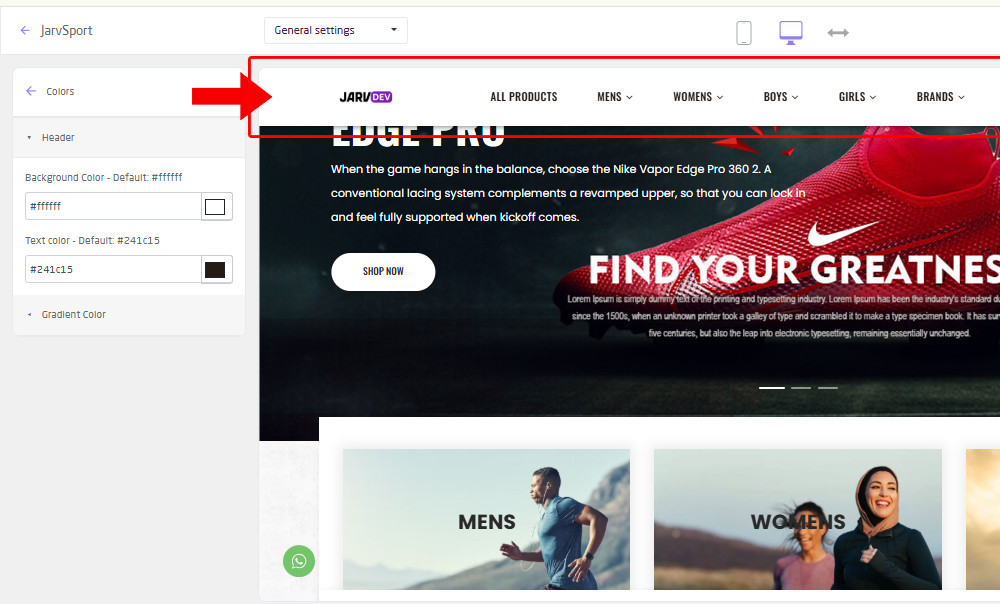
Colors > Gradient Color | Change the gradient color for announcement bar, hover button and some other part of the themes.

Fonts | Chane the font style of your store.
We will add more option in general settings in future.
HEADER SETTINGS
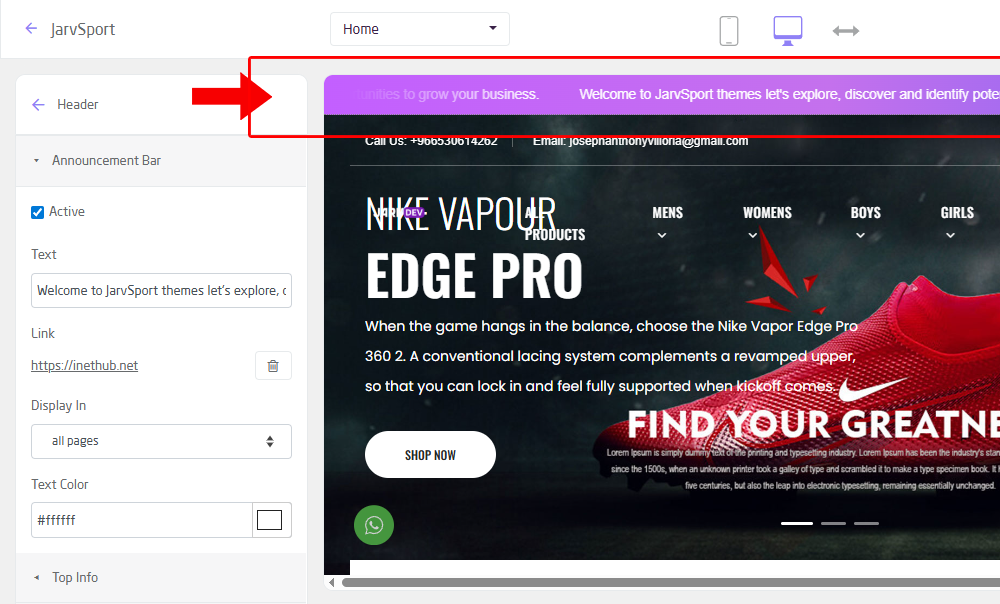
Announcement Bar | Create an announcement for your curtomers like sale, discounts etc.
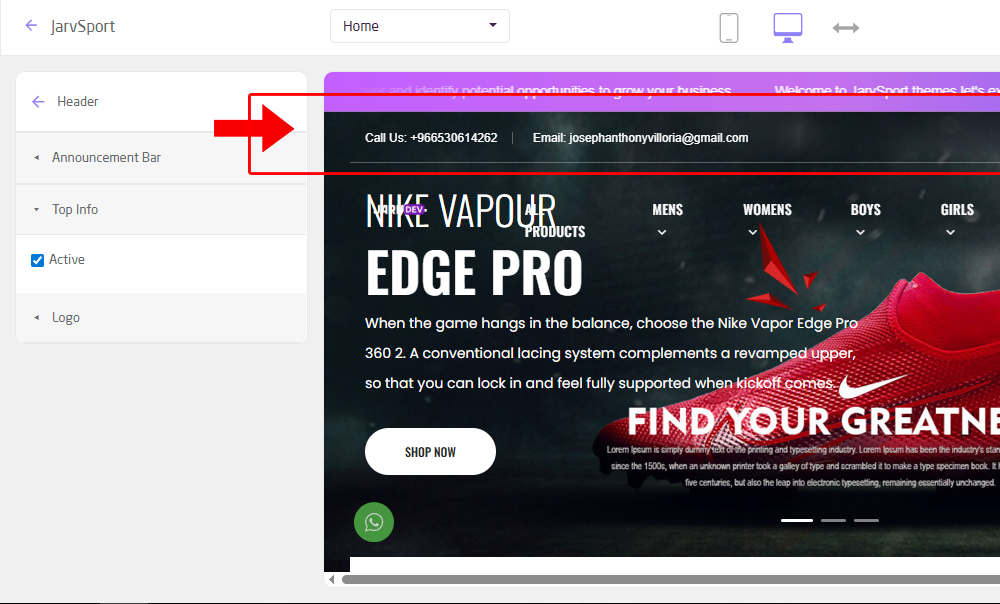
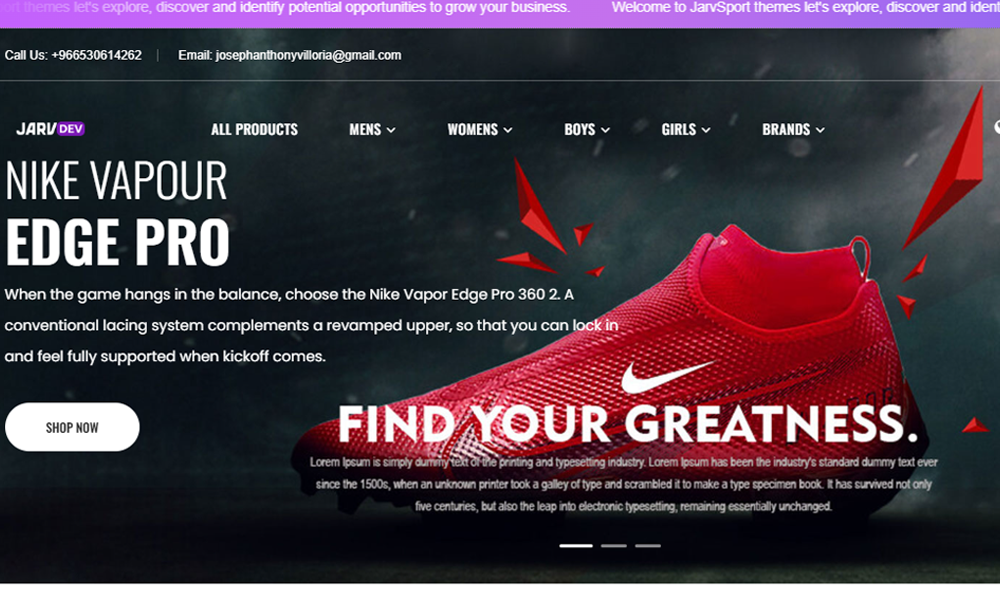
Top Info | Activate the top info header it will show your contact number, email and social media accounts.
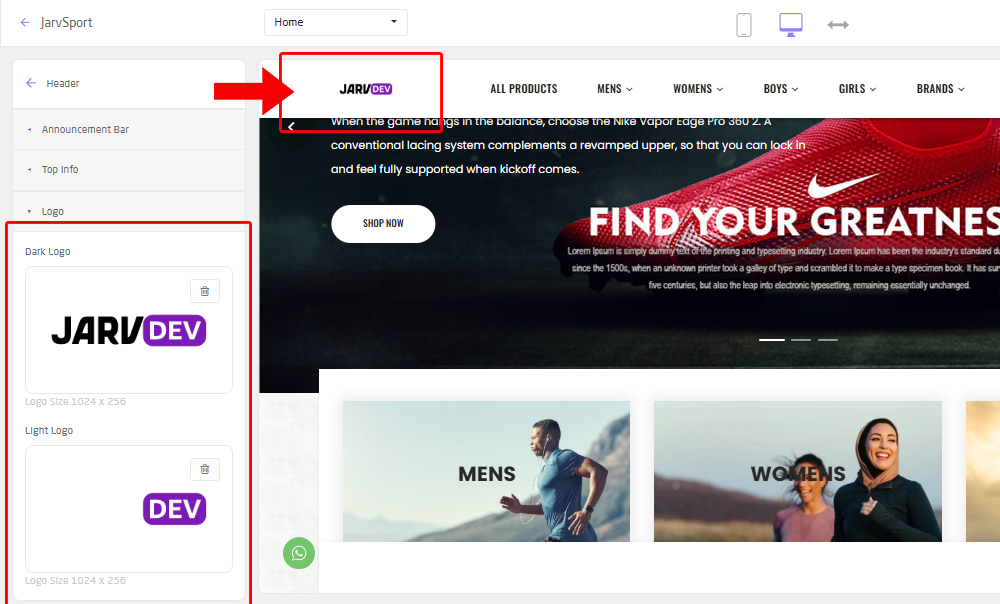
Store Logo | Update your logo. You should have dark and light logo.
Body/Main Content
Owl Slider
suggested to use dark background image you can use this background image for your introduction. download slider image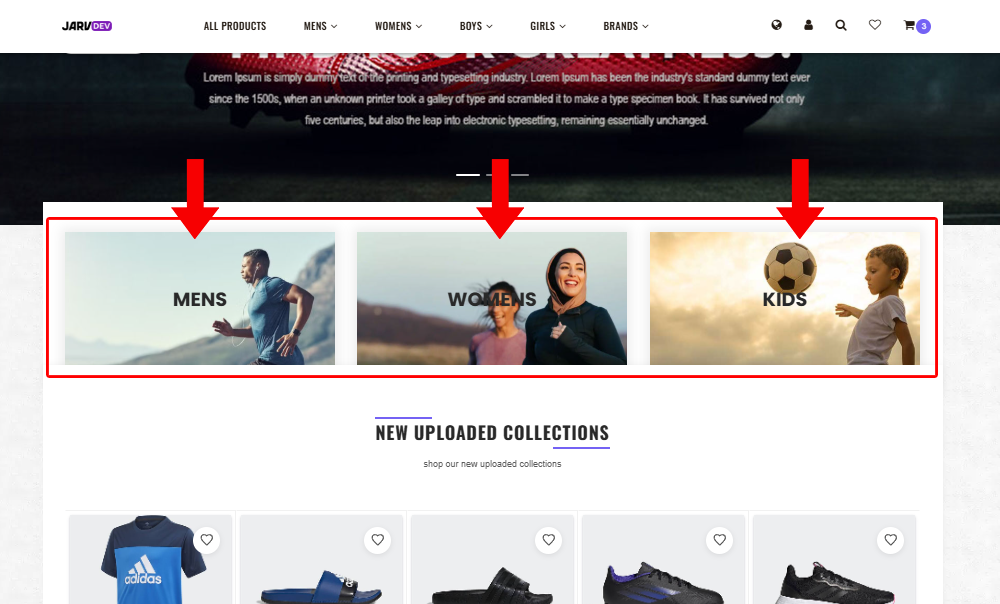
Products
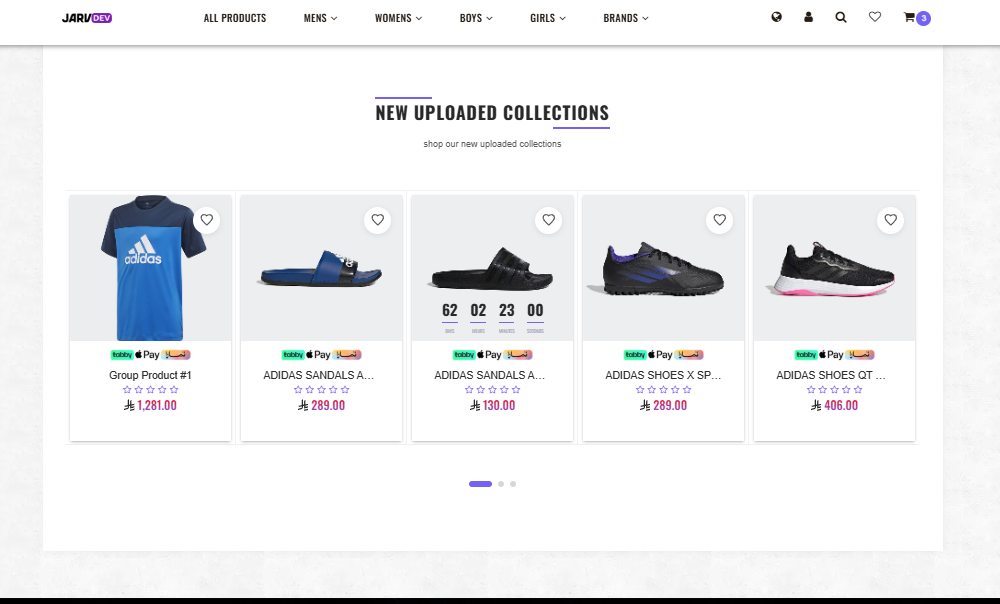
We link these product to recently uploaded products you can use this background images for product download image
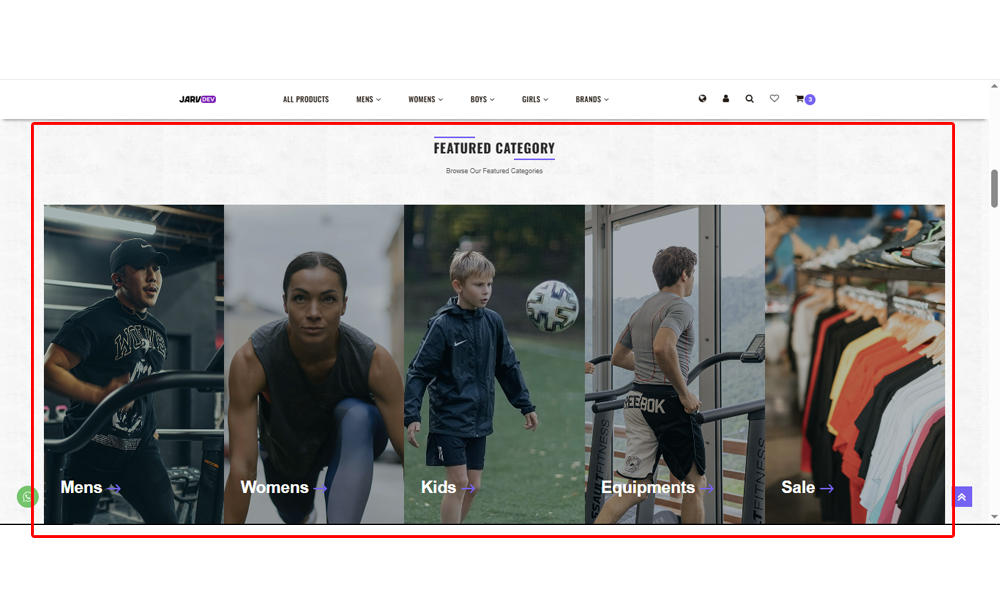
Slick Slider
It automatically adjusts to different screen sizes and devices, ensuring a consistent and optimized user experience across desktops, tablets, and mobile phones.
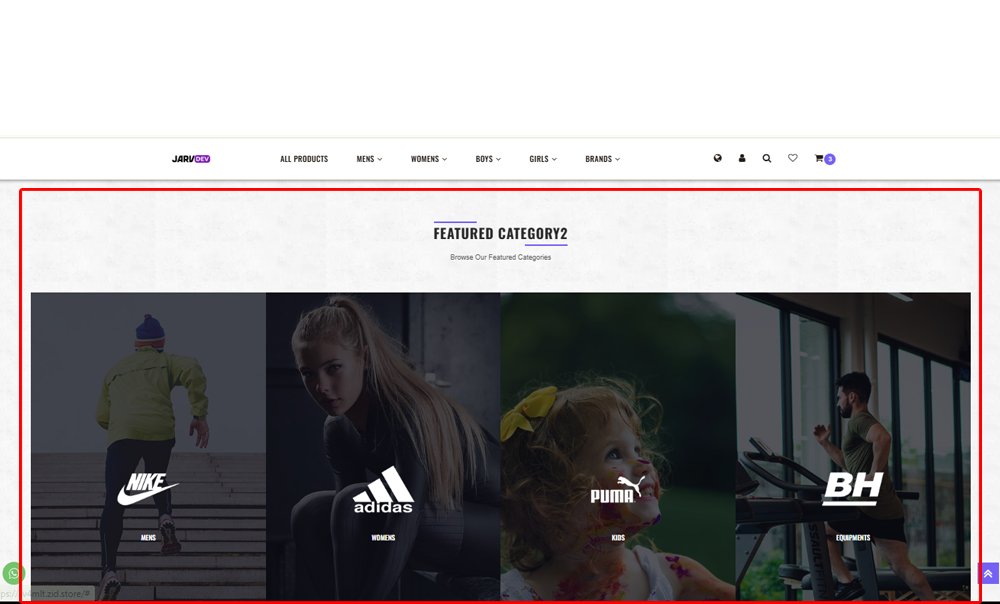
Sliding Category
Create your sliding category with brand logo on middle.
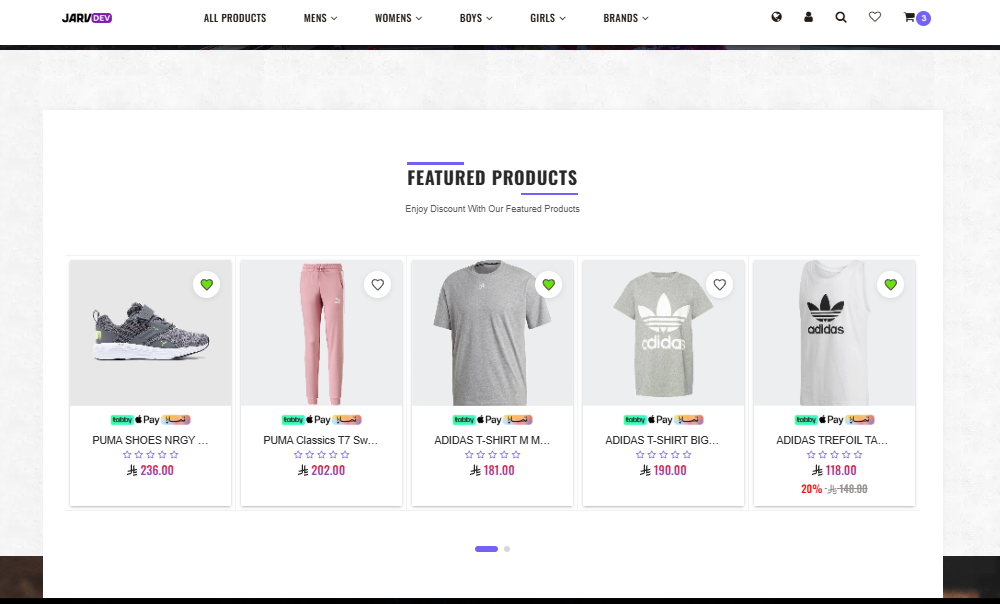
Products 2
You can create a product category or group of product to link in this section. you can create multiple products section in body content.
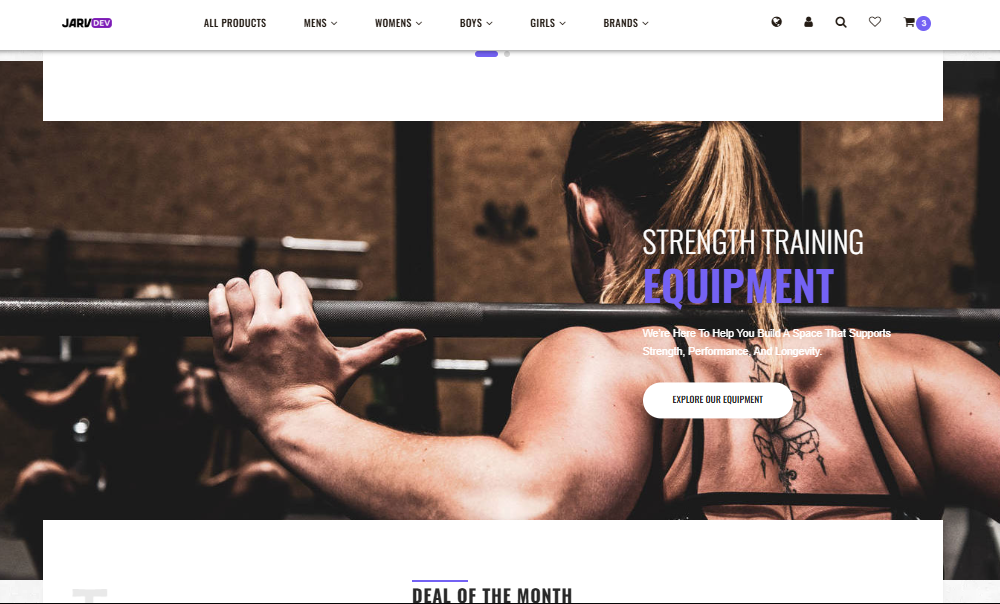
Single Category
Create single category link with image
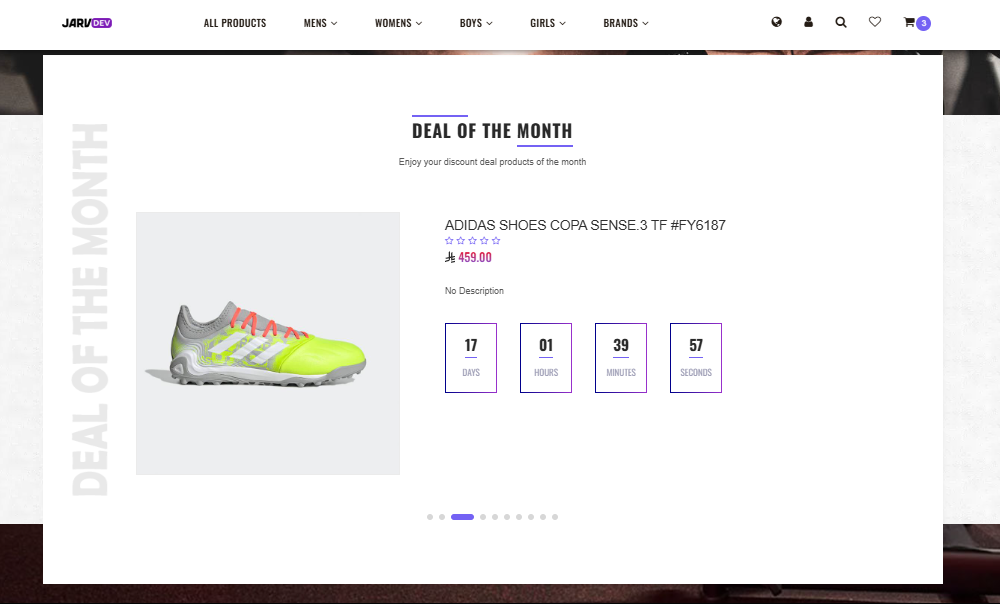
Deal Products
Create deal/discount products with countdown timer
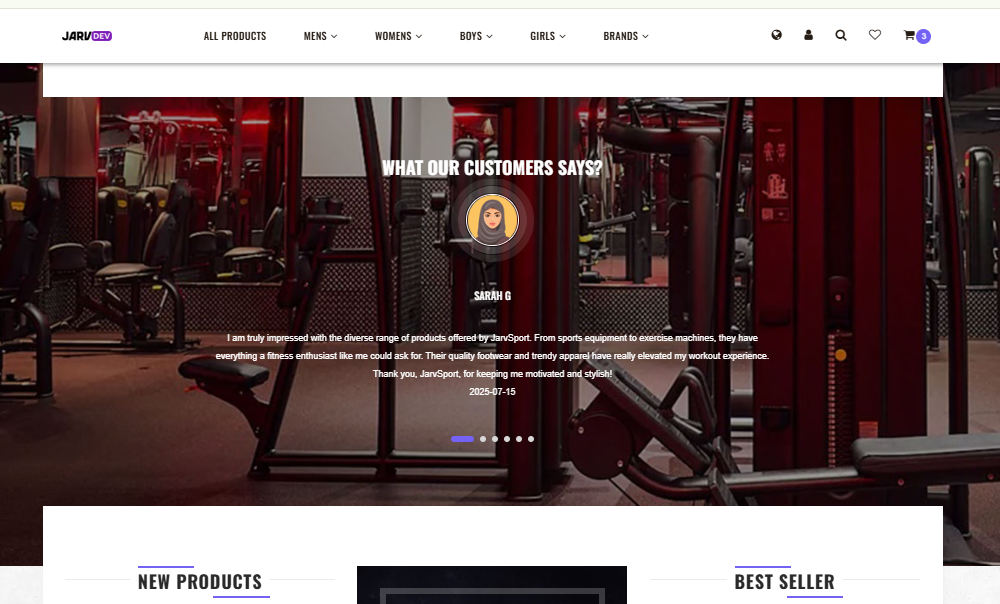
Testimonials
Create testimonials for your store, you can set user icon for man or woman.
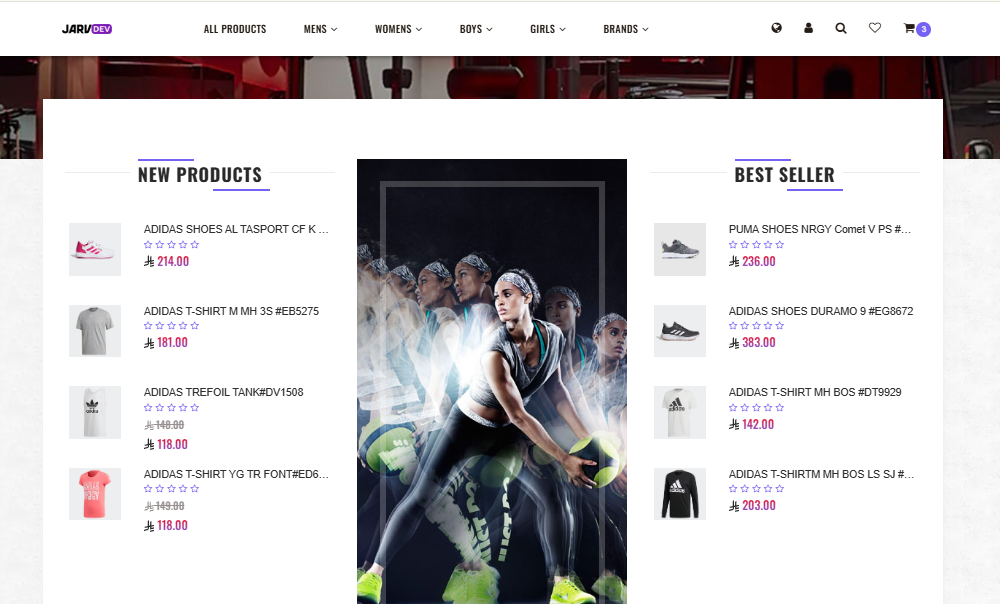
New/Best Seller
Create left/right product slider. 5 products every slides.
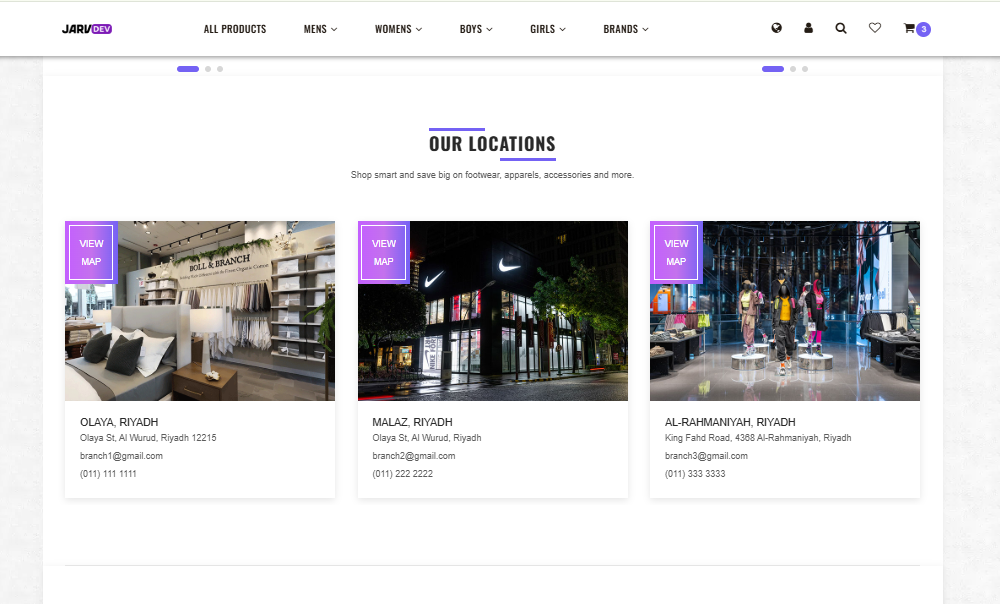
Branches/Locations
Slider list of your branch.
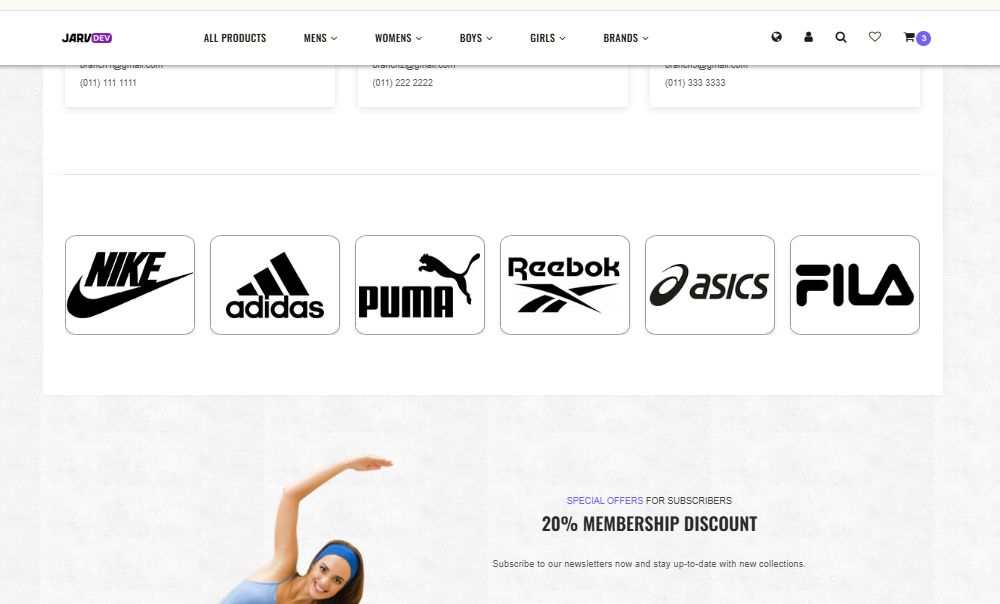
Brands/Partner
list/Logo of your brands or business partner.
Footer Settings
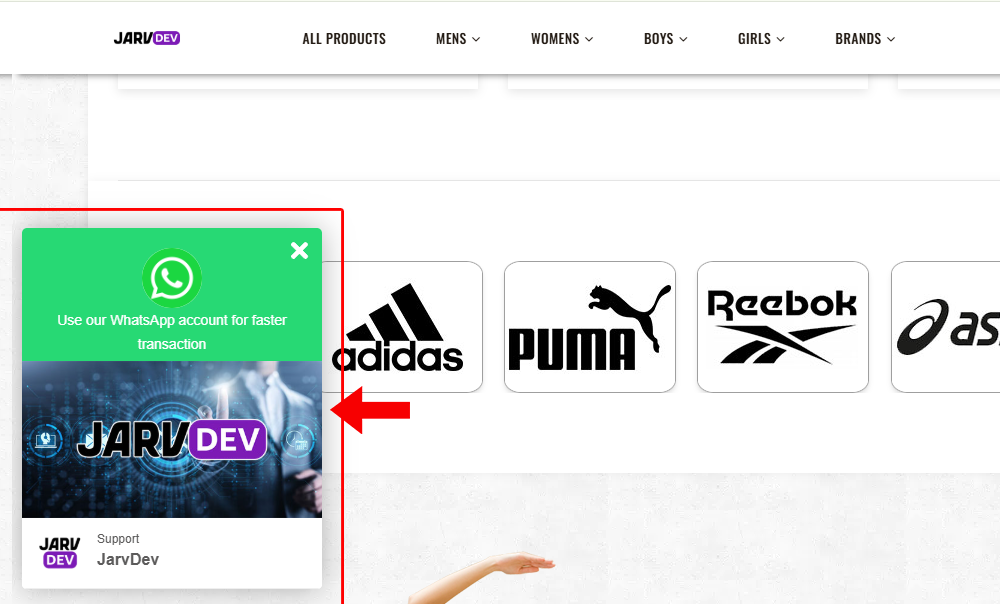
Whatsapp Button
Whatsapp button to directly contact you on your whatsapp account.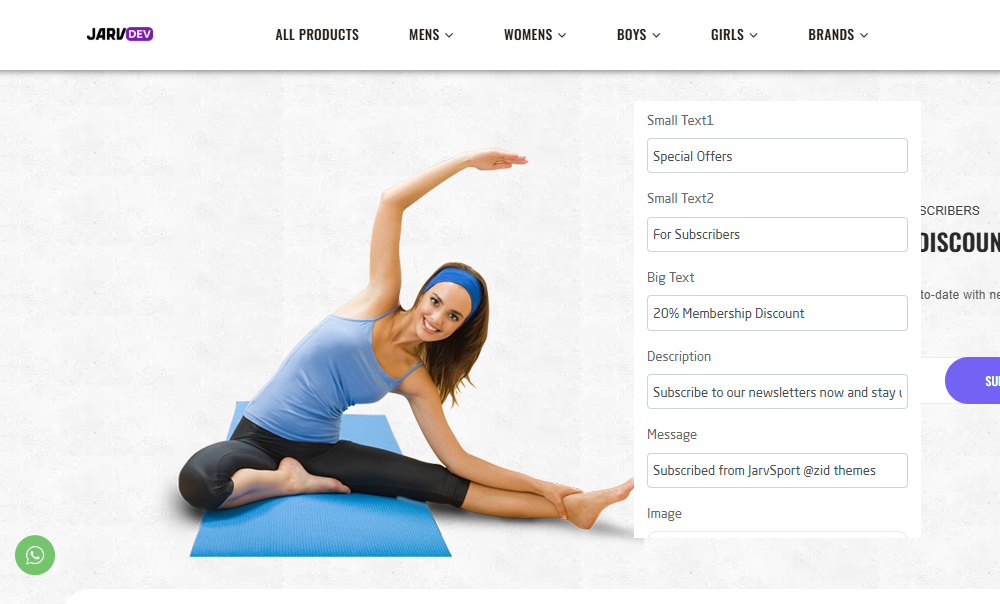
Email Subscription
Create email subscription follow the instruction in Footer > Email Subscription.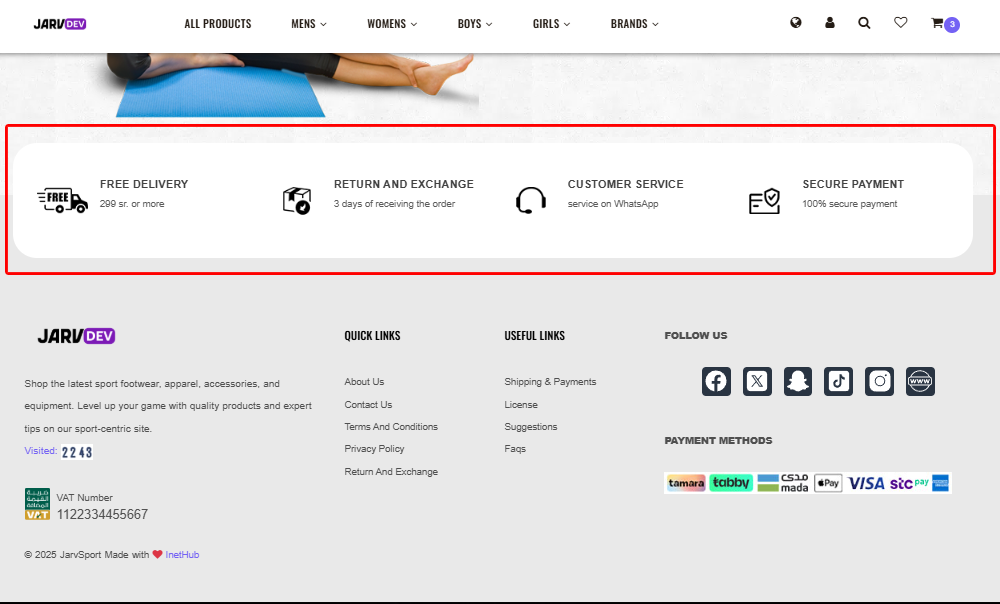
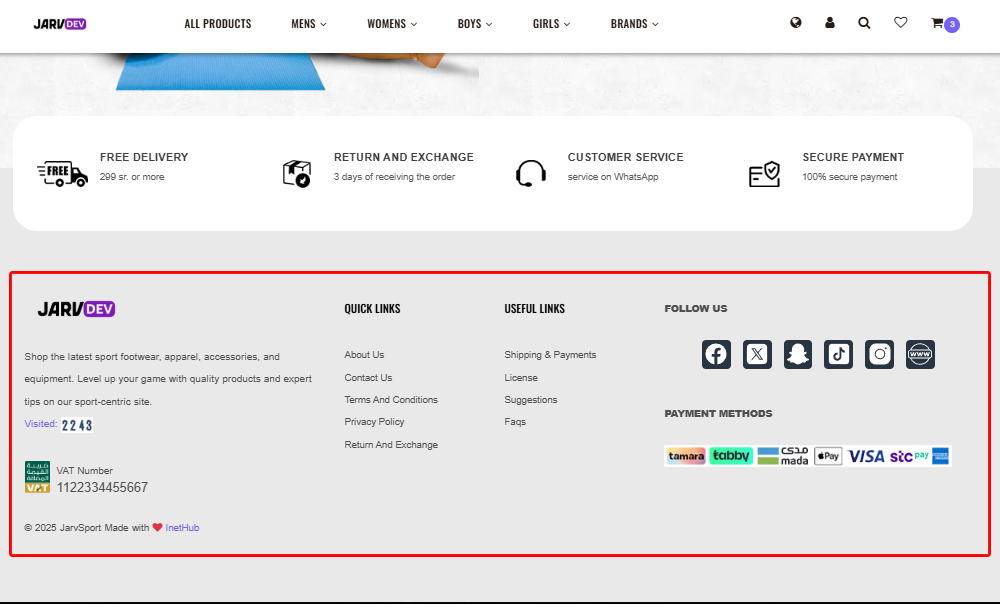
4 Icon Services
Create 4 icon services with short description like delivery, payment, return and exchange and customer service.